Format conversion · 8 min read
PNG to JPG: Handle Transparency, Backgrounds, and Quality
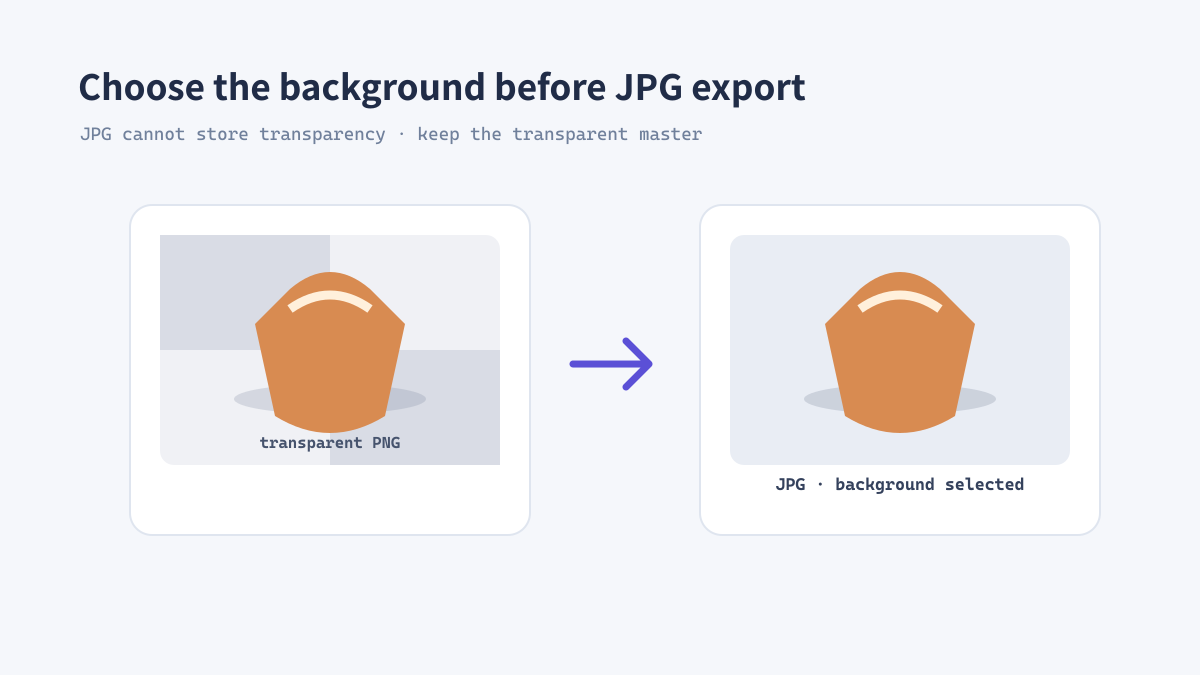
JPG is a practical format for photographs, email attachments, and platforms that expect broad compatibility. It does not support transparency, however, so a transparent PNG needs a background decision before conversion. This guide walks through that choice and the quality checks that help prevent visible artifacts.
What changes when PNG becomes JPG?
Transparency is replaced by a solid background
PNG can store transparent pixels; JPG cannot. During conversion, those pixels are composited against a background color. A logo that looked clean on a dark page may therefore show a white rectangle if the background was not considered.
JPG also uses lossy compression. It is often efficient for photographs, but high-contrast edges, small text, and repeated re-saves can reveal ringing or block artifacts. Keep the original PNG as the editable source.
A reliable PNG-to-JPG process
Choose the background before exporting
A thumbnail may hide compression defects that become visible in a full-size banner. Inspect both the intended display size and a close view.
- Check whether the PNG contains transparency and identify where the JPG will be used.
- If needed, place the image on a white, brand-color, or layout-matched background before conversion.
- Open ImageTool.cc PNG to JPG and select the image or batch.
- Choose the output dimensions and a quality level appropriate for the use.
- Inspect edges, text, gradients, and skin tones at 100% before sharing.
Real example: a transparent product cutout
Prepare separate versions for different placements
A product cutout with a transparent background may be placed on white in a marketplace feed and on a colored campaign panel elsewhere. Create a JPG flattened against the required background for the first placement, and keep a transparent PNG or WebP master for future layouts. One flattened JPG cannot serve every background reliably.
When JPG is the right delivery format
Use it for opaque photographic images
- Choose JPG when a target platform requires JPEG or when legacy compatibility matters.
- Compare WebP when you need smaller modern web assets or transparent output.
- Use PNG or WebP when transparent pixels must remain editable.
- Avoid repeated JPG re-exports; return to the source for each new delivery copy.