Production workflow · 9 min read
A Reliable Batch Image Conversion Workflow for Teams
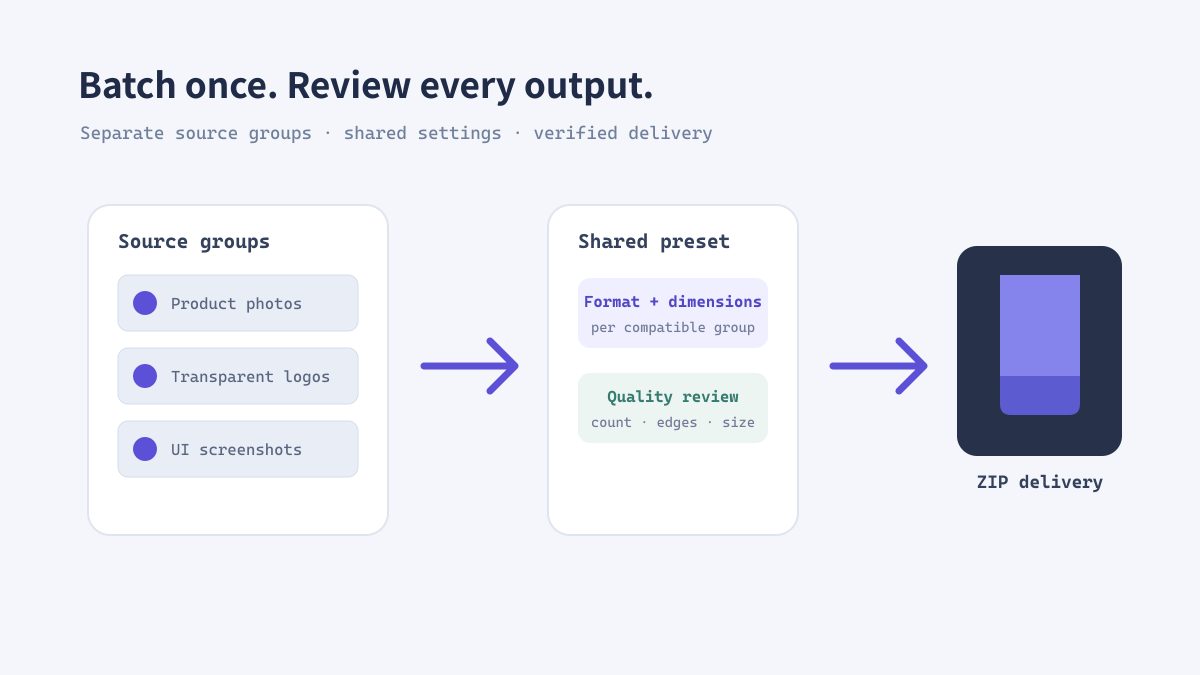
Batch conversion saves time only when the output remains predictable. A shared process for file grouping, dimensions, naming, and review prevents a fast export from turning into inconsistent assets that need to be fixed one by one later.
Prepare a batch before opening the converter
Group files by their intended use
Separate photographs, transparent logos, screenshots, and illustrations when they need different formats or quality settings. Mixed files can technically be converted together, but one setting may be wrong for part of the batch.
Keep a source folder untouched and make a clearly named working copy. Decide the target dimensions from the actual page, app slot, or delivery specification rather than choosing one number for every project.
Run a consistent batch conversion
Use one tested preset per group
If different groups need different formats or dimensions, process them separately. That small extra step makes the results easier to explain and audit.
- Select one group of compatible source images.
- Open the ImageTool.cc batch converter and choose the required output format.
- Set image and canvas dimensions separately when the output frame must be standardized.
- Convert the batch and download the resulting ZIP.
- Extract the archive into a staging folder and compare the file count with the source group.
Real example: a weekly product catalog update
Make the export repeatable
A team receives 40 product photos and 12 transparent logo overlays every week. The photos may be delivered as JPG or WebP at catalog display dimensions, while the logos need transparency. Split the batch, apply the relevant settings to each group, and retain the original files so a later campaign can use a different crop.
Review the output before publishing
Catch the mistakes a ZIP cannot show
- Confirm every expected file is present and filenames remain distinguishable.
- Open a sample from the beginning, middle, and end of the batch.
- Check transparency, orientation, dimensions, and visual quality.
- Compare the output file size against the source and the intended delivery limit.
- Keep source, staging, and approved export folders separate.
生产工作流 · 约9分钟
团队批量转换图片的可靠工作流
批量转换只有在输出可预测时才真正省时。统一文件分组、尺寸、命名和复核流程,可以避免快速导出后仍需逐个修补不一致素材。
打开转换器前先准备批次
按最终用途分组
将照片、透明标志、截图和插画分开;它们往往需要不同格式或画质设置。技术上可以把不同文件一起转换,但同一项设置可能不适合所有图片。
保留未修改的源文件夹,再创建名称清晰的工作副本。根据实际网页版位、应用槽位或交付规范确定目标尺寸,不要每个项目都套用同一个数字。
一致地执行批量转换
每组使用已验证的设置
不同分组需要不同格式或尺寸时,应分开处理。多做这一步能让输出更容易说明和检查。
- 选择一组来源兼容的图片。
- 打开 ImageTool.cc 批量转换工具并选择输出格式。
- 如果需要统一文件画框,分别设置图像尺寸与画布尺寸。
- 执行转换并下载 ZIP 结果。
- 将压缩包解压到暂存目录,并对照源文件数量检查是否齐全。
案例:每周更新商品目录
把导出步骤变成可复用流程
团队每周收到 40 张商品照片和 12 张透明标志叠图。照片可根据目录尺寸导出为 JPG 或 WebP,标志则必须保留透明背景。分开处理两组并保留源文件,后续活动需要不同裁切时就能重新生成。
发布前检查输出
ZIP 无法替你检查画面
- 确认预期文件都存在,文件名仍可区分。
- 抽查批次开头、中间和末尾的文件。
- 检查透明度、方向、尺寸和画质。
- 对照源文件和交付限制检查导出体积。
- 将源文件、暂存文件和审核通过的导出文件分开保存。